

Translations
A visual template uses the same translation files as any other template: one JSON file per
language in a localizations folder beside it, such as de-DE.json. A render picks the language
with locale; see translations.
Translate a text
Section titled “Translate a text”Select a text block or a table column and click Translate this text. The text moves into the template’s language file under a key, and the block shows that key from then on. The panel then shows the text in each language, marks the languages it is missing in, and lets you type it in the language being previewed.
Use plain text turns it back into one text for every language; the key stays in the files.
Edit all translations
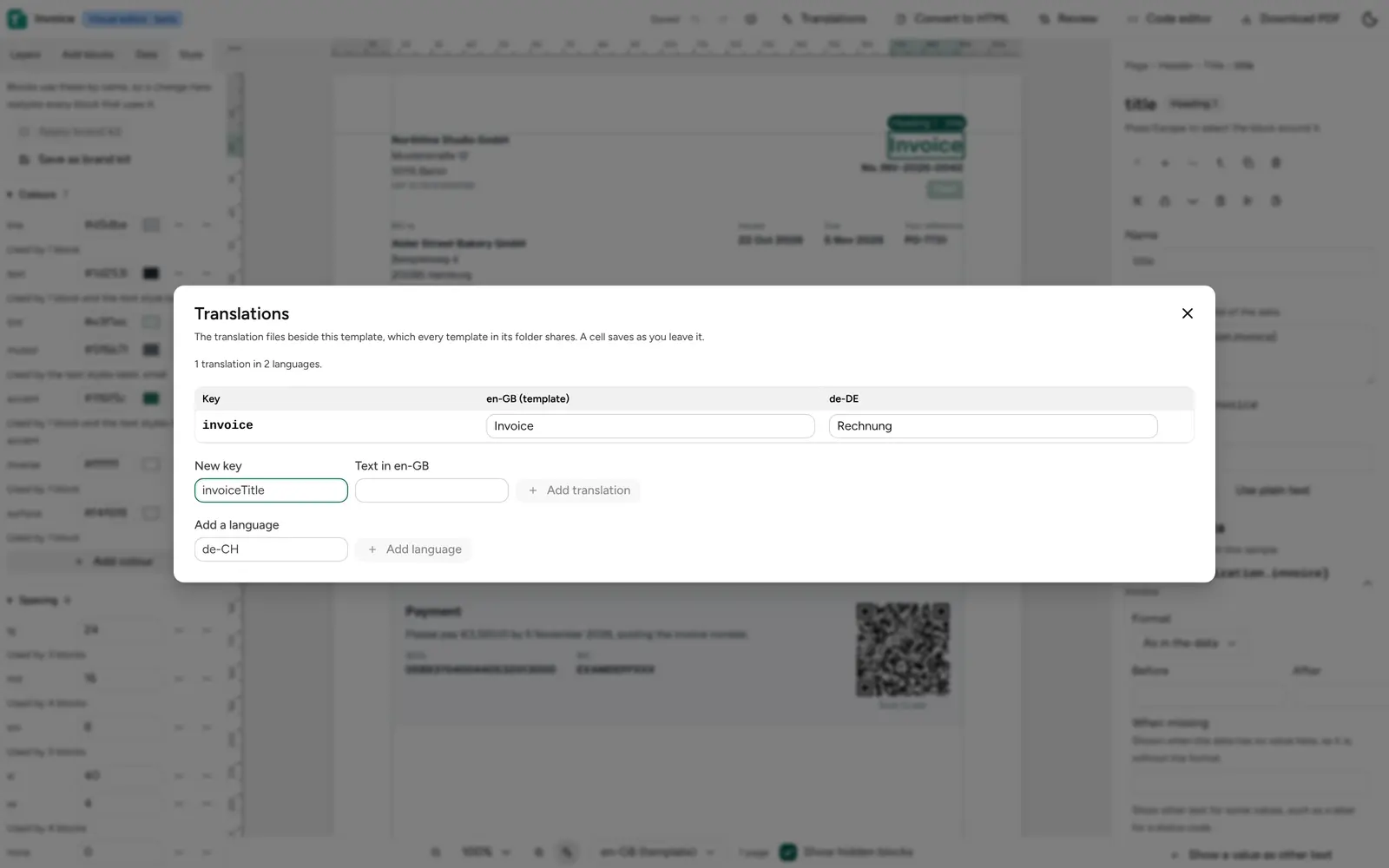
Section titled “Edit all translations”Translations in the header opens every key of the template’s folder with one column per
language. A cell saves as you leave it, and missing texts are marked in red. Add a key with
Add translation, and a language with Add a language, such as fr-FR.
Preview a language
Section titled “Preview a language”The Language menu under the page draws the pages in another language, with its texts and its way of writing numbers and dates. A language without its own file reads the template’s language.
A text missing in a language is listed under Problems. A render in that language fails unless the block has a fallback.