

Visual editor
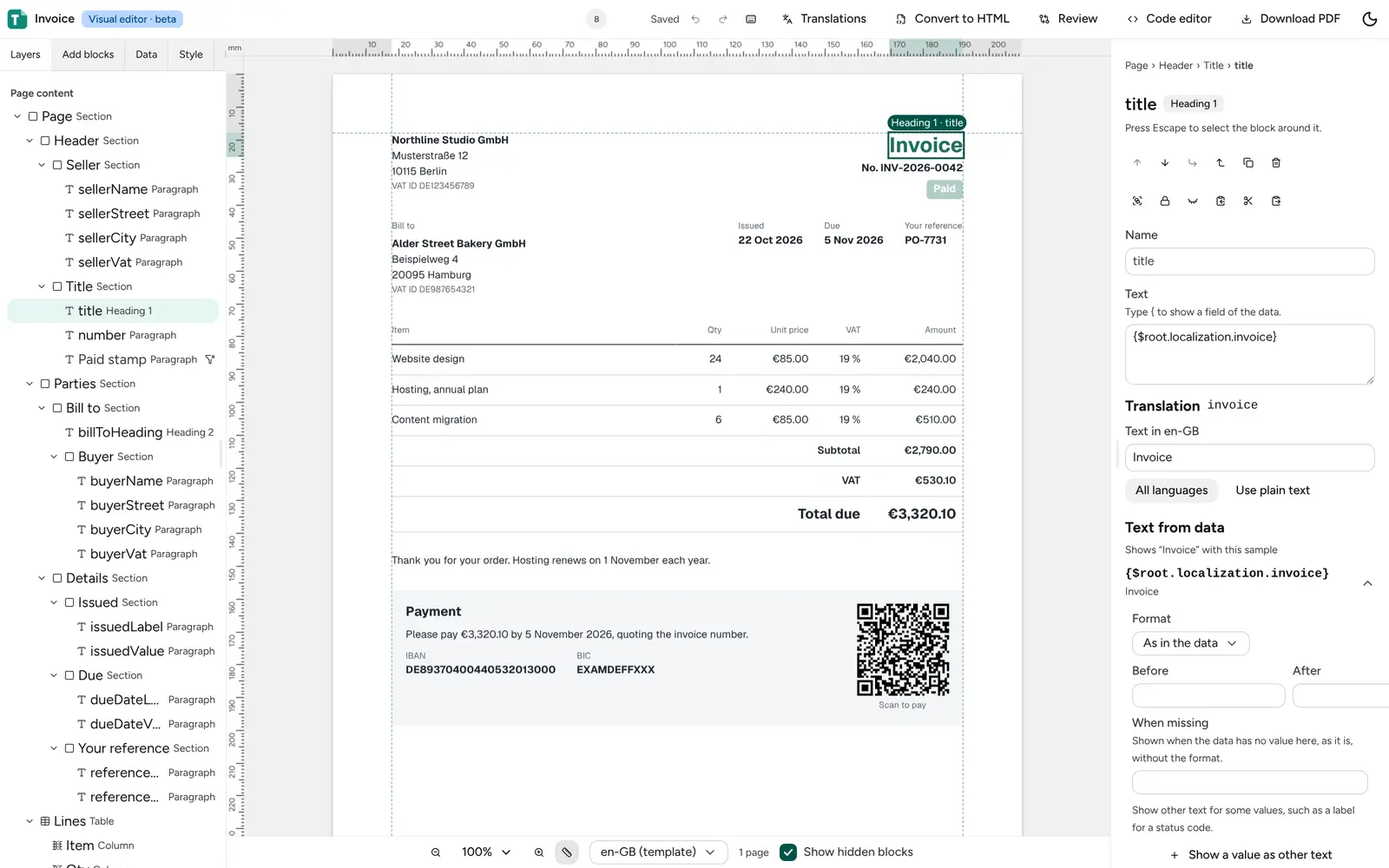
The visual editor lays out a template on its pages. You add blocks, bind them to your data and style them, and the page is drawn by the same engine that renders your PDFs, so what you see is what your application gets. Underneath, the template is a component template: a tree of blocks you can also read and change as JSON.
Start a template
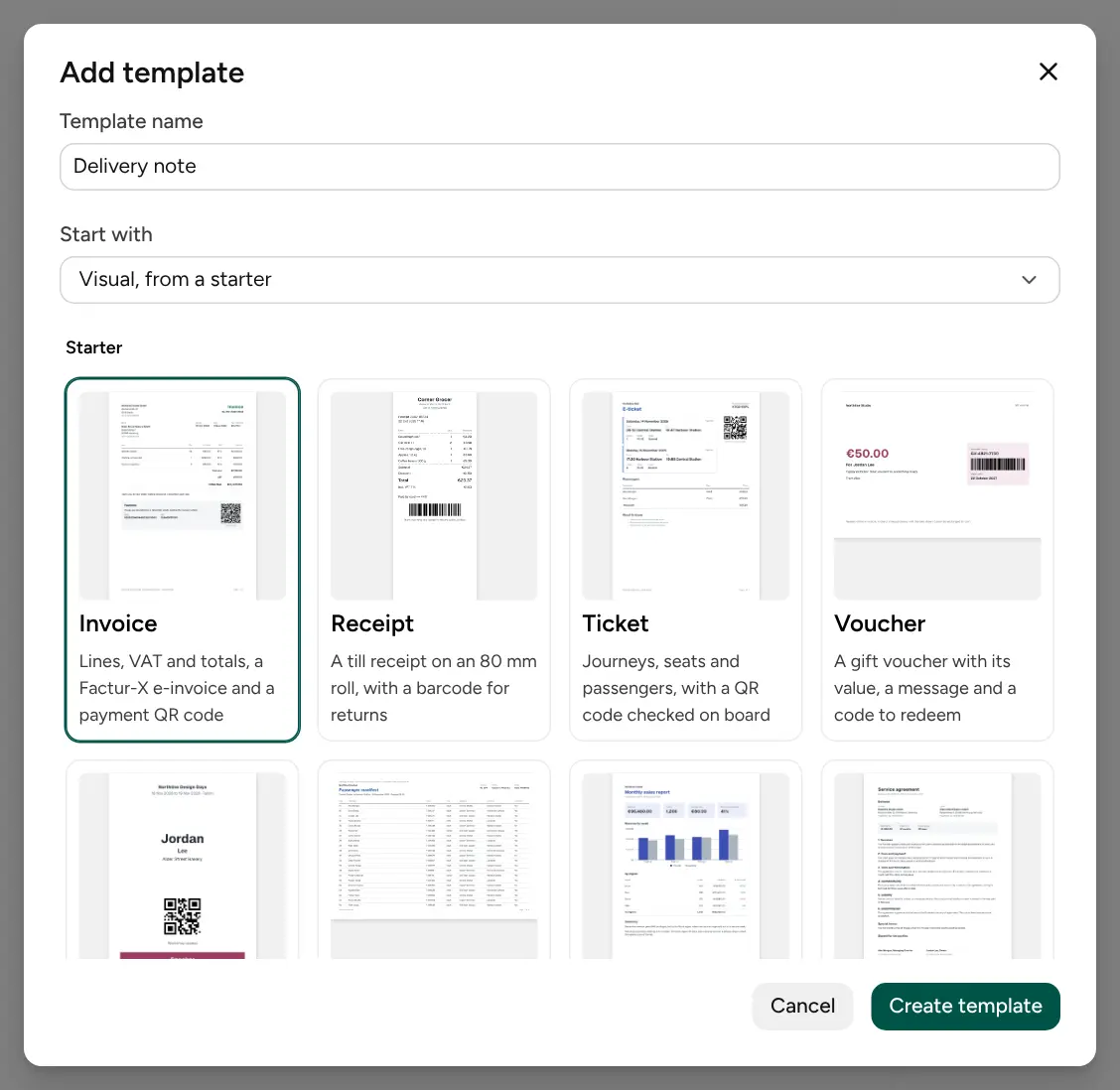
Section titled “Start a template”In Workspace → Editor, choose Add template (or New entity → Template in the + menu), name it, and pick how it starts under Start with:
| Start with | You get |
|---|---|
| Blank page | An empty page. Start with offers it first. |
| Ready-made starter | One of twelve finished documents with sample data: invoice, receipt, ticket, voucher, event badge, passenger manifest, report, contract, letter, certificate, shipping label and packing slip. |
| Layout from JSON data | Paste a sample of your data, or drop a .json file of up to 1 MB. Every field gets a block bound to it: values as labelled text, objects as sections, lists as tables. A very large sample leaves some fields out, to add from the Data tab. |
| PDF file, drafted with AI | A template drawn after a PDF you already send. See from a PDF. |
A new visual template takes the colours, fonts and logo of your workspace’s
brand kit. Its sample data is saved beside it as
sample.json, in a new folder named after the template when you create it at the workspace
root.
To open an existing visual template, select it in the editor’s explorer and choose Visual editor in its header. A template that starts as code (Code: HTML or Excel) opens in the code editor instead, since the visual editor edits only component templates.
The screen
Section titled “The screen”- Header: the save status, Undo and Redo, the keyboard shortcuts, then Translations, Convert to HTML, Review, Code editor and Download PDF.
- Left panel: tabs for Layers, Add blocks, Data, Style, Problems, Factur-X and AI assistant.
- The page: click a block to select it. Under it are the zoom, Rulers, the preview language and the page count.
- Right panel: the selected block’s settings and style, or the page settings when nothing is selected.
Save, undo and edit together
Section titled “Save, undo and edit together”Every change saves on its own; the header shows Saved, Saving… or Unsaved changes. Each save is a revision in the template’s history. Undo takes back your own changes, up to 300 steps, and a burst of typing is one step.
Several people can edit a template at once. Their pictures show in the header, and their selections and pointers show on the page with their names. Each change reaches the others as it is made. If the draft was changed somewhere else in a way the editor cannot merge, a banner offers Load the latest draft or Keep my version.
Publish and render
Section titled “Publish and render”Your applications render the published version, not the draft. Click Publish in the header. It saves your latest edits first, then publishes the draft as the next version, as for any template. The header shows the live version, and Changes since v3 once the draft has changed after it.
If your workspace publishes only approved drafts, the header shows Needs approval instead until someone approves the latest draft on the Review page.
Then render it by name:
curl "$PDF_URL/v1/reports/render" \ -H "x-api-key: $API_KEY" \ -H "content-type: application/json" \ --fail-with-body -o invoice.pdf \ -d '{ "format": "pdf", "template": { "name": "Invoice" }, "data": { "invoice": { "number": "INV-2041" } } }'using Typefold.Client;
var client = new TypefoldClient( new Uri(Environment.GetEnvironmentVariable("PDF_URL")!), Environment.GetEnvironmentVariable("API_KEY")!);
byte[] pdf = await client.RenderReportAsync(new RenderReportRequest{ Template = TemplateRef.ByName("Invoice"), Data = new { invoice = new { number = "INV-2041" } },});
await File.WriteAllBytesAsync("invoice.pdf", pdf);import { writeFile } from "node:fs/promises";import { TypefoldClient, TemplateRef } from "@typefold/client";
const client = new TypefoldClient({ baseUrl: process.env.PDF_URL!, apiKey: process.env.API_KEY!,});
const pdf = await client.renderReport({ template: TemplateRef.byName("Invoice"), data: { invoice: { number: "INV-2041" } },});
await writeFile("invoice.pdf", pdf);import { writeFile } from "node:fs/promises";import { TypefoldClient, TemplateRef } from "@typefold/client";
const client = new TypefoldClient({ baseUrl: process.env.PDF_URL, apiKey: process.env.API_KEY,});
const pdf = await client.renderReport({ template: TemplateRef.byName("Invoice"), data: { invoice: { number: "INV-2041" } },});
await writeFile("invoice.pdf", pdf);import osfrom pathlib import Path
from typefold import TypefoldClient, RenderReportRequest, TemplateRef
client = TypefoldClient(os.environ["PDF_URL"], os.environ["API_KEY"])
pdf = client.render_report( RenderReportRequest( template=TemplateRef.by_name("Invoice"), data={"invoice": {"number": "INV-2041"}}, ))
Path("invoice.pdf").write_bytes(pdf)Everything the Reports API and the Renders API offer works the same for a visual template: languages, content sets, batches, webhooks, PDF/A and signing.
Switch to code
Section titled “Switch to code”- Code editor opens the same template as
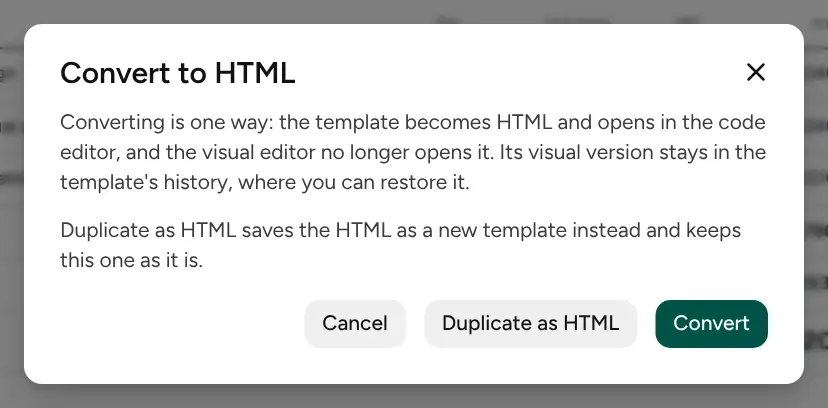
composition.json. Changes made there show in the visual editor too. - Convert to HTML turns the template into an HTML template that draws the same pages. It is one way: the template then opens in the code editor only, and its visual version stays in the history, where you can restore it. Duplicate as HTML saves the HTML as a new template named “name (HTML)” and keeps this one as it is. Parts that HTML draws differently are listed before you confirm. See convert to HTML.
More in the visual editor
Section titled “More in the visual editor”- Lay out the page: blocks, headers, footers and paper.
- Show your data: bindings, formats, tables and conditions.
- Style and brand kit.
- Translations.
- Check a template: problems, the stress test and Factur-X invoices.
- Review and approve changes before they go live.
- Let business users edit content: mark the parts they may change, and keep a content set per customer.
- Embed the content editor in your own app, for your customers.
- AI assistant, and AI agents that build visual templates for you.