

Review and approve changes
Before a change goes live, see what it changes, let the people who sign off look at the pages, and, if the workspace asks for it, publish only what someone approved. Open a template and choose Review in its header.
Compare
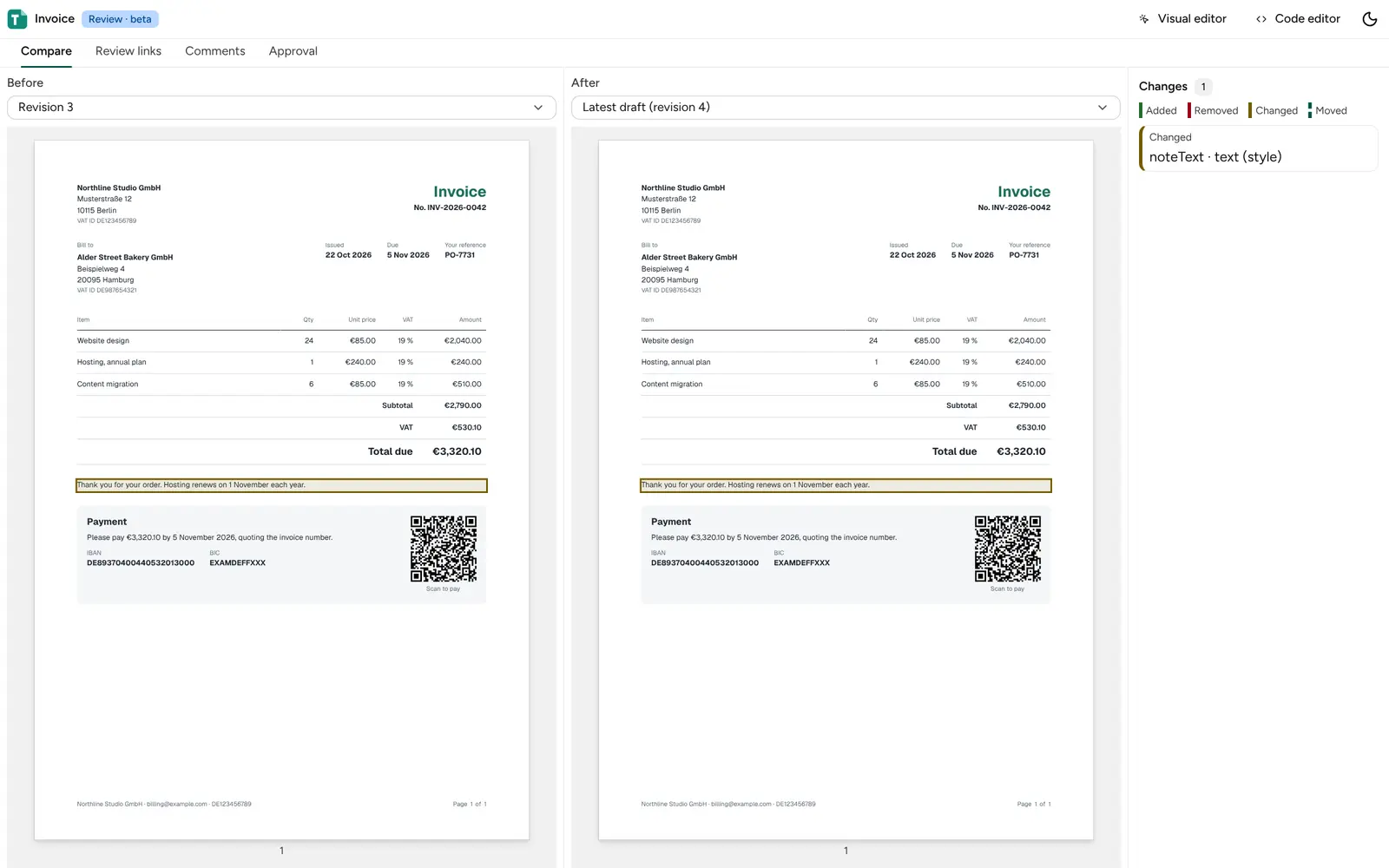
Section titled “Compare”The Compare tab shows two states of the template side by side, each rendered with its sample data. Pick any two under Before and After: the latest draft, a published version, or an earlier saved revision. By default it compares the live version with the latest draft, or an earlier revision when nothing is published yet.
Blocks that changed are outlined on both pages:
| Mark | Shown on | Meaning |
|---|---|---|
| Added | The right | The block is new. |
| Removed | The left | The block is gone. |
| Changed | Both sides | Its own properties changed, such as its text or style. |
| Moved | Both sides | It is in another place or inside another block. |
The list beside the pages names each change. Click one to scroll both pages to it. Changes that are not blocks are listed too, such as page settings, sample data, translations or the theme.
Blocks are matched by their ID, so give the blocks you care about an id in a
component template. A change to a block without an ID counts as a change
to the nearest block around it that has one. An HTML template has no blocks, so a change to its
source is listed as one change to the template source.
The same list is available from the API:
curl -X POST "$PDF_URL/v1/templates/$TEMPLATE_ID/comparison" \ -H "x-api-key: $API_KEY" \ -H "content-type: application/json" \ -d '{ "from": { "version": "c7e0b9a4-1f2d-4c3b-9a8e-5d6f7a8b9c0d" }, "to": { "revision": 12 } }'{ "from": { "revision": 9, "version": { "id": "c7e0b9a4-1f2d-4c3b-9a8e-5d6f7a8b9c0d", "number": 3 } }, "to": { "revision": 12 }, "changes": [ { "kind": "changed", "path": "root.children[1]", "block": "billing/street", "type": "text", "name": "Street", "fields": ["text"] }, { "kind": "changed", "path": "settings.margins" } ], "truncated": false}block is the ID the block’s boxes carry on the page, data-tf-id in HTML: a block inside a
component instance has the instance’s ID in front of its own. Up to 500 changes are listed;
truncated says when there were more.
Code and restore
Section titled “Code and restore”Show changes as → Code puts the two sides’ files next to each other line by line, with unchanged lines folded away: the template source, helpers, header and footer, page settings and the data, stylesheets and scripts the template uses. The code editor’s History button opens this view.
Restore makes the Before side the latest draft, after you confirm. The draft it replaces stays a revision, so you can restore it again, and nothing goes live until you publish.
Approvals
Section titled “Approvals”An owner or administrator can ask that templates are approved before they are published. In Review → Approval, turn on Publish only approved drafts and choose who may approve:
- Owners and administrators
- Anyone who can publish
While it is on, a draft is published only once someone allowed has approved that exact revision. This holds wherever the publish comes from: Studio, the API or an import. Saving the draft again makes a new revision, which needs its own approval. Approvals are given by people signed in to Studio, never by an API key.
Each approval is in the workspace’s audit log as
template.approved, and turning the setting on or off as company.publish_approval.updated.
Review links
Section titled “Review links”A review link shows a template’s pages to people without an account, such as a client or a colleague in legal. In Review → Review links, choose what to Show (the latest draft or the live version), an optional Title reviewers see, and Days until it stops working, from 1 to 30 (7 by default). Click Create link.
- The pages are rendered once, with the template’s sample data, when the link is created. The link shows nothing else: no other data, no template source, no workspace details.
- The link is shown once. Copy it then; only a fingerprint of it is stored.
- Revoke a link at any time. A revoked or expired link stops working, and its pages are deleted.
- A template has up to 20 working links, and a workspace up to 100.
Reviewers click a point on a page and leave a comment pinned to it and to the block under it. Each link takes up to 200 comments. The comments appear in Review → Comments, where anyone who can edit the template marks them resolved or reopens them; Show resolved lists the resolved ones too.
To create a link from the API:
curl -X POST "$PDF_URL/v1/templates/$TEMPLATE_ID/review-links" \ -H "x-api-key: $API_KEY" \ -H "content-type: application/json" \ -d '{ "label": "Invoice redesign", "expiresInDays": 3 }'The answer’s token opens the review at /review/<token> on the Studio address.