

Show your data
Blocks show the data your application sends with each render. While you edit, the page is drawn with the template’s sample data, so every value shows as it will in the PDF.
Sample data
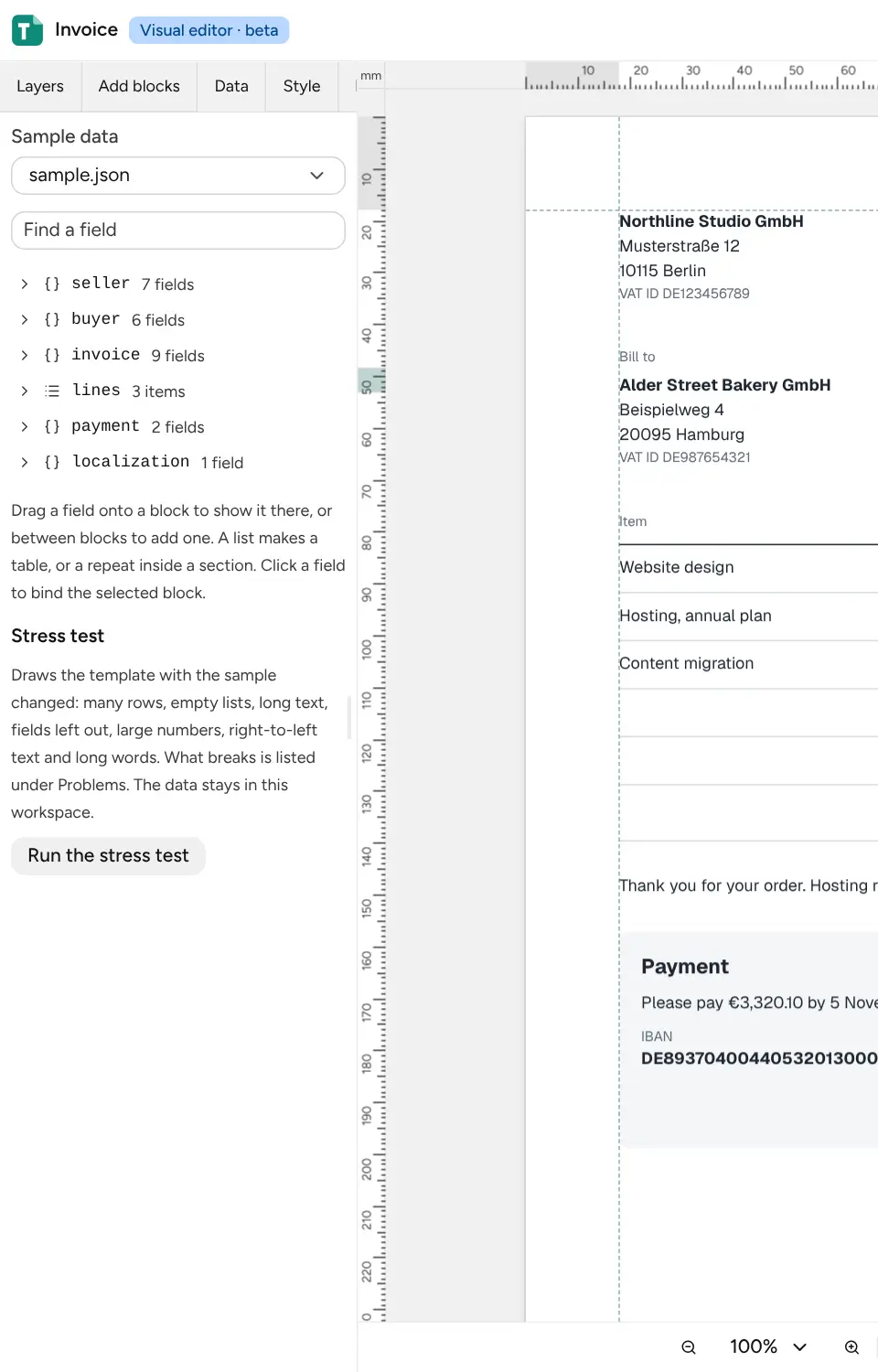
Section titled “Sample data”The Data tab starts with Sample data: the JSON file the page is drawn with, usually
sample.json beside the template. Pick another file there to see the page with other data, such
as a long order or a customer abroad. Edit the files themselves in the code editor.
Bind a block
Section titled “Bind a block”Below the sample, the Data tab lists its fields with an example value each, and a search box.
- Drag a field onto a block to show it there, or between blocks to add a new block for it.
- Click a field to bind the selected block to it.
- Drag a list to get a table, or a repeat when you drop it inside a section.
- In a text field, or while typing on the page, type
{to pick a field. Text around it stays, as inInvoice {invoice.number}.
Inside a table or repeat, fields of the row bind to each row. A note under the search box says which list the selected block is in.
Format a value
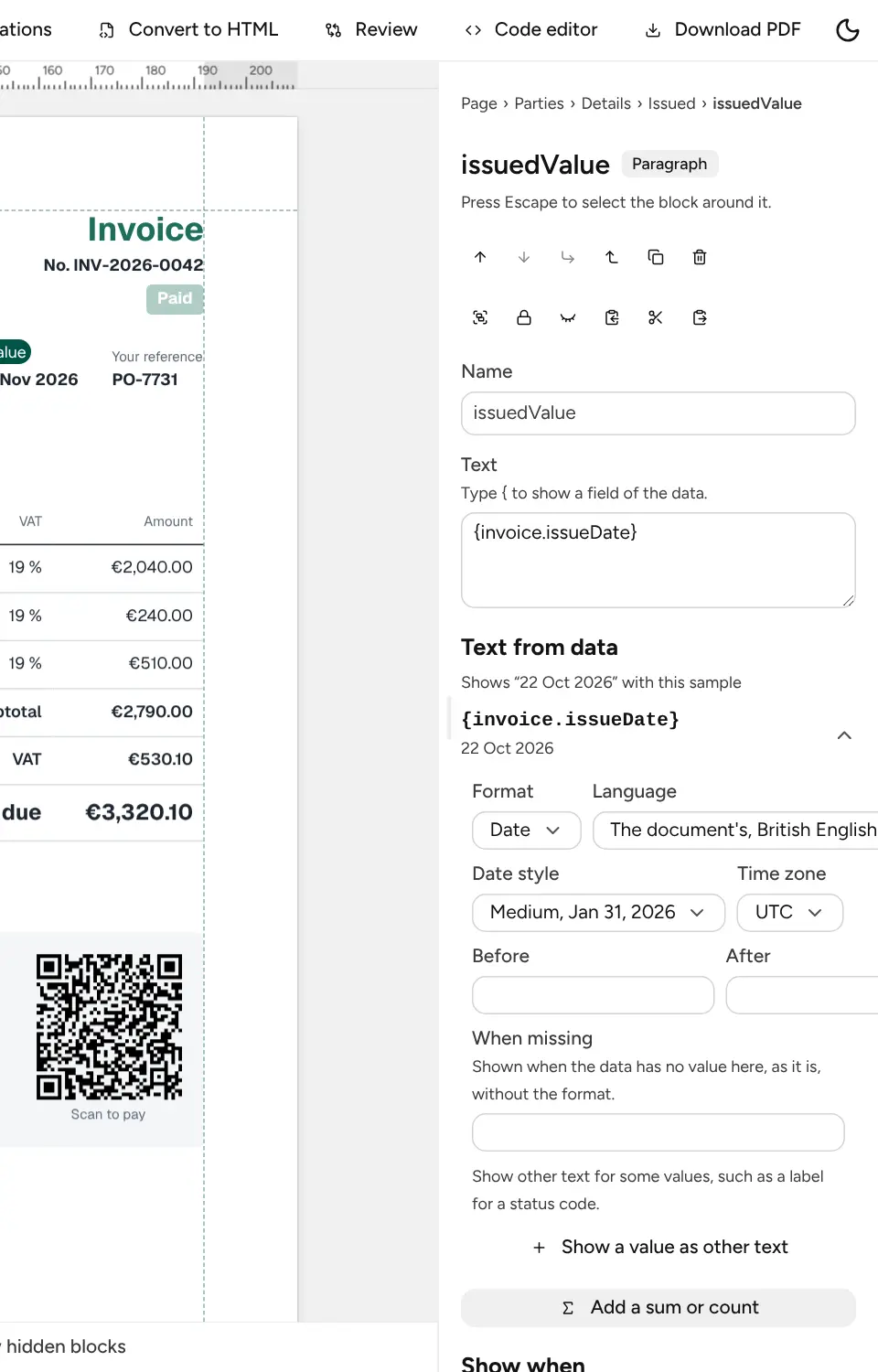
Section titled “Format a value”Select a block that shows a value. Under Text from data, the panel shows what it prints with this sample, and sets how:
- Format: As in the data, Number, Currency (EUR unless you pick another), Percent (the data holds a fraction: 0.25 shows as 25%) or Date, with the decimals, the date style and the time zone.
- Language: whose way of writing numbers and dates to use. It follows the document’s language unless you pick one.
- Before and After: text around the value, such as a unit.
- When missing: what to show when the data has no value here. Without it, a render whose data lacks the value fails.
- Show a value as other text: a value map, such as
paidshown as “Paid in full”.
Sums and counts
Section titled “Sums and counts”Add a sum or count totals the rows of a list: Sum, Count of rows, Average, Minimum or Maximum, of one field of each row. It takes the same format as any value.
Tables and repeats
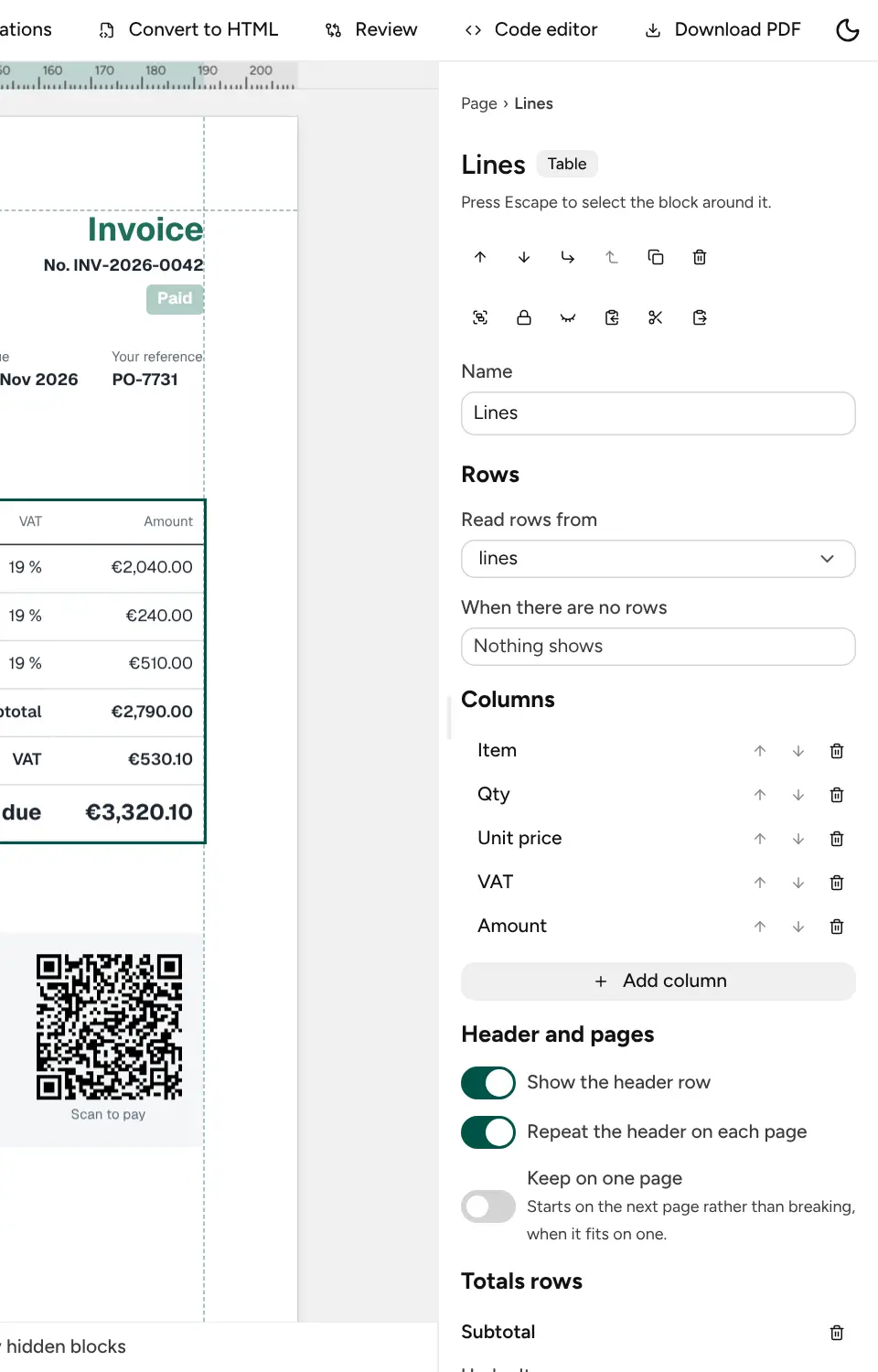
Section titled “Tables and repeats”Select a table to set it up in the right panel:
- Rows: the list it reads (Read rows from), and what shows when there are no rows.
- Columns: add, reorder and delete them. Select a column to set the value it shows in each row and its width. Or select a column and drag its right edge on the page.
- Header and pages: Show the header row, Repeat the header on each page, and Keep on one page, which starts the table on the next page rather than breaking it when it fits on one.
- Totals rows: Add totals row, then choose for each column Text, Sum, Average, Minimum, Maximum or Number of rows.
A repeat draws its blocks once for each row of a list, Under the one before or Beside the one before, such as a card per passenger. It can show a text when there are no rows.
Show a block only for some data
Section titled “Show a block only for some data”Under Show when, Add a condition to show the selected block only when the data matches, written as a sentence: invoice.status is not paid. The tests are is set, is empty, exists, is missing, is, is not, and for numbers is more than, is at least, is less than and is at most.
Add condition joins more with and or or, and Add group nests them. A condition can also test a sum or count, such as a note shown only when some item is on back order.
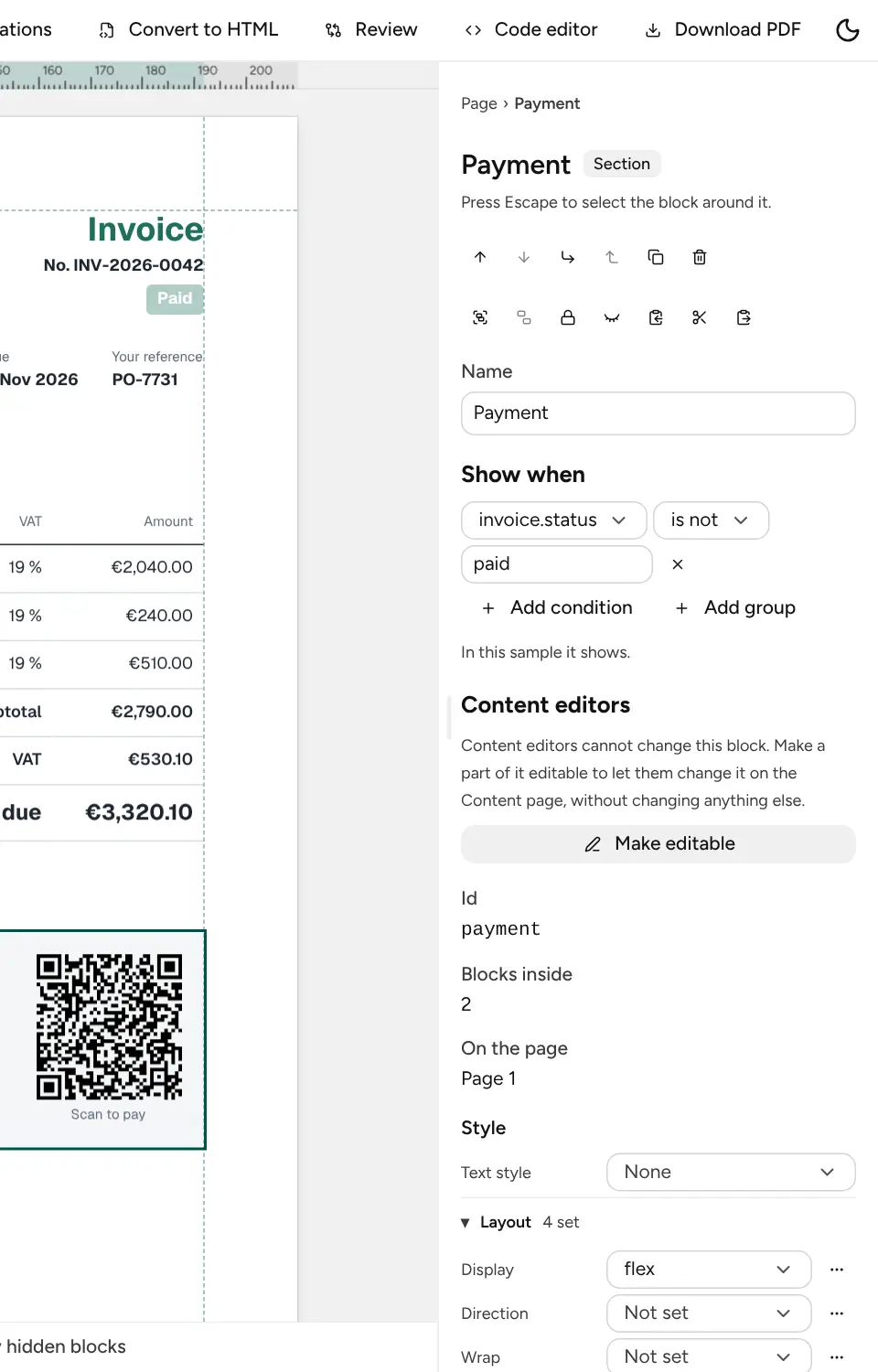
The panel says whether the block shows with this sample. Blocks hidden by their condition are drawn faded on the page while Show hidden blocks is on, and the layers mark every block that has a condition. To see the page as printed, turn it off, or pick sample data that shows the other case.
Conditions, formats and bindings are written into the template as described in component templates.