

Lay out the page
A visual template is a tree of blocks: sections that hold other blocks, and text, images, tables, codes and charts inside them. The Layers tab shows the tree, and the page shows what it draws. Each block type is described in component templates.
Add blocks
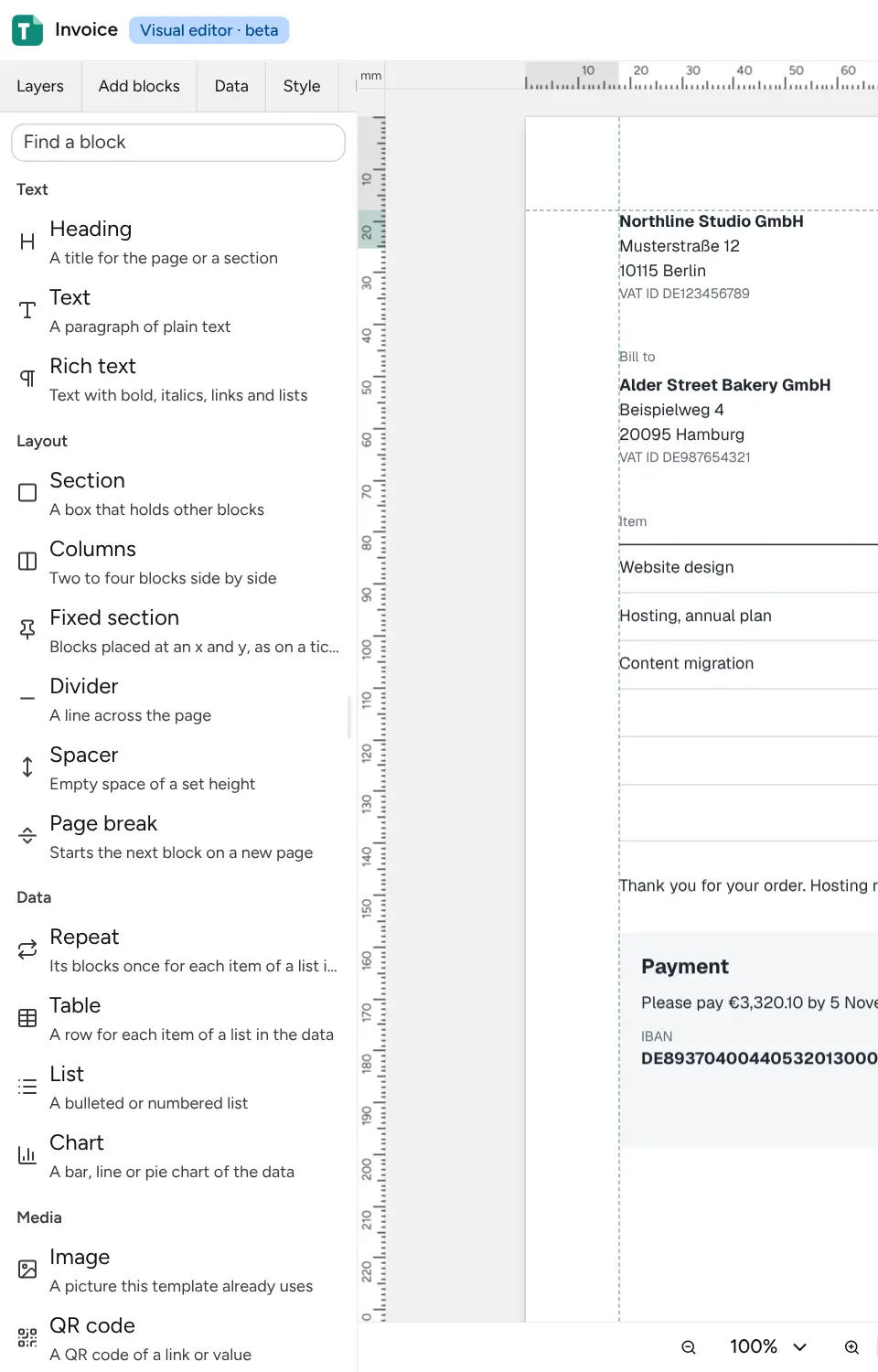
Section titled “Add blocks”The Add blocks tab lists the blocks by group, with a search box:
| Group | Blocks |
|---|---|
| Text | Heading, Text, Rich text |
| Layout | Section, Columns, Fixed section, Divider, Spacer, Page break |
| Data | Repeat, Table, List, Chart |
| Media | Image, QR code, Barcode |
| Page numbers | Page X of Y, Page number, Page count |
| Forms | Text box, Checkbox, Drop-down list, Signature field, Certificate signature |
| Components | The template’s own reusable components, if it has any |
Below them are ready sections: Header with logo, Address block, Totals box, Signature line, Terms and QR payment slip.
Click a block to add it after the selected block, or inside it when the selected block holds blocks. Or drag it to any place on the page or in the layers: on a layer row, the top quarter puts it before, the bottom quarter after, and the middle inside.
Select and edit
Section titled “Select and edit”- Click a block to select it. Shift, Ctrl or ⌘ with a click adds or removes a block, and a rectangle dragged on the page selects the blocks inside it.
- The right panel shows the block’s name, its text or value, its data, its style and who may change its content.
- Double-click a text block, or press Enter on it, to type on the page. Enter finishes and Escape cancels. In rich text, Enter makes a new line and Ctrl or ⌘ with Enter finishes.
- Drag a selected block to move it, or use the buttons at the top of the right panel: Move earlier, Move later, Move into the block before, Move out of the block around, Duplicate and Delete.
- With one or more blocks selected, Group into a section, Ungroup, Copy, Cut and Paste work on all of them. Copied blocks paste into any template of the same workspace.
- Lock keeps a block from being moved or deleted until it is unlocked. Hide while editing leaves it off the editor’s page; the PDF still has it.
Fixed sections
Section titled “Fixed sections”A fixed section places its blocks at an exact position, like a form printed on a pre-made sheet. Drag a block inside it to move it, or drag one of its eight handles to resize it. It snaps to edges, centres and other blocks; hold Alt to place it freely, and press Escape to cancel. The arrow keys move the selected block by 1, or by 10 with Shift.
Paper and margins
Section titled “Paper and margins”With nothing selected, the right panel shows the page settings:
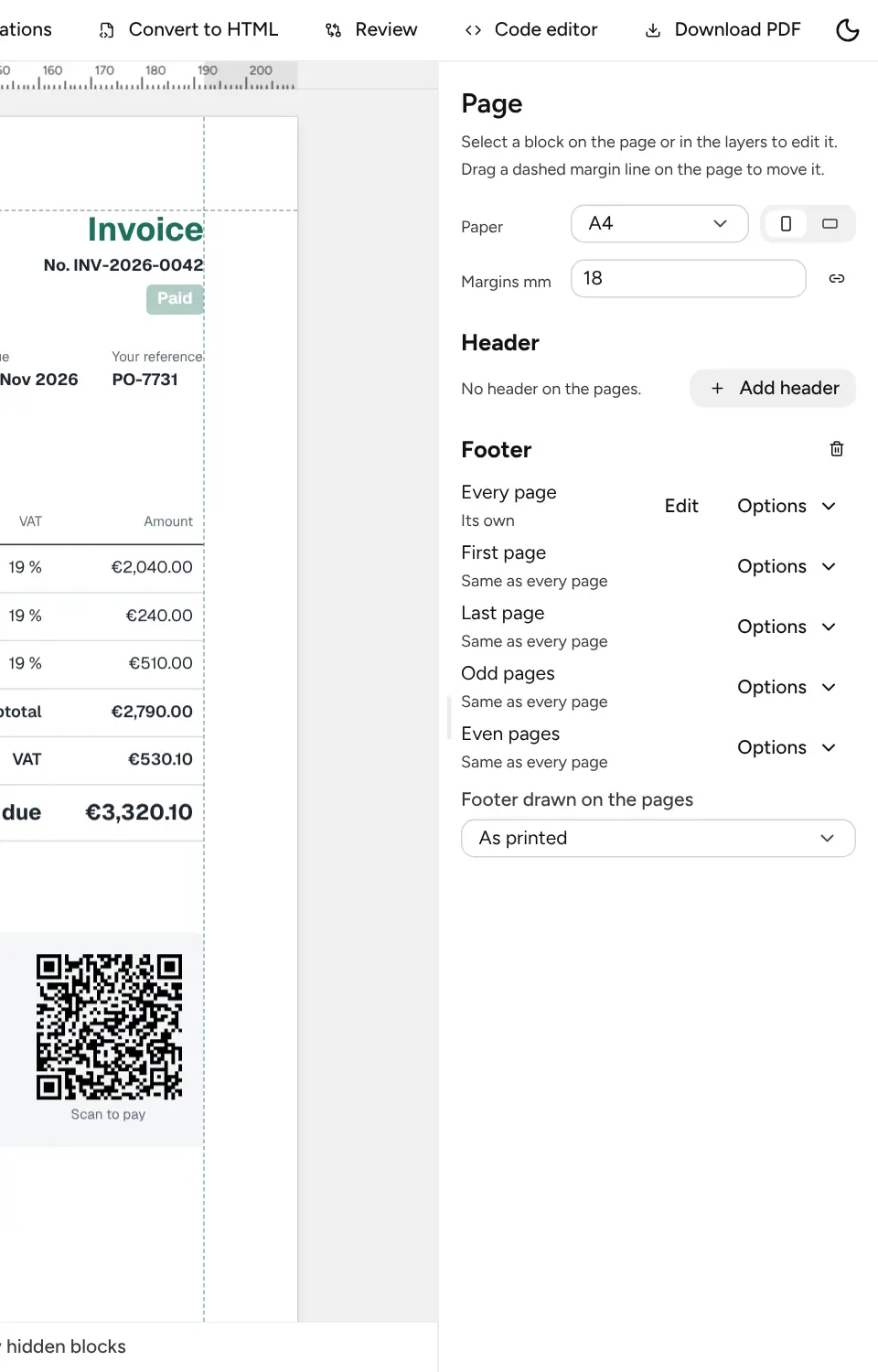
- Paper: A3, A4, A5, Letter, Legal or Custom in millimetres, and portrait or landscape.
- Margins in millimetres, one for all sides or Set each side separately. You can also drag the dashed margin lines on the page.
Headers and footers
Section titled “Headers and footers”Add header and Add footer add a band drawn in the top or bottom margin of every page. Select its blocks on the page or under its name in the layers, and edit them like any other.
Each band can differ by page: Every page, First page, Last page, Odd pages and Even pages. Each variant is Same as every page until you give it its own through Options: a copy of another variant, a new empty band, or no band on those pages. Drawn on the pages shows one variant on every page while you edit it; As printed shows each page as it renders.
Page numbers (Page X of Y, Page number, Page count) go in a header, a footer, or a fixed section placed on every page. A new footer starts with “Page n of N”.
Zoom and rulers
Section titled “Zoom and rulers”The bar under the page zooms from 25 to 400% (Ctrl or ⌘ with + and −, or with the mouse wheel), fits the width or the page, and turns the rulers on and off. Click the rulers’ corner to switch between millimetres and points.
Keyboard shortcuts
Section titled “Keyboard shortcuts”Press ? for the full list. Ctrl is ⌘ on a Mac.
| Keys | Does |
|---|---|
| Ctrl Z, Ctrl Shift Z | Undo, redo |
| ↑ ↓, Home, End | Select the previous, next, first or last block |
| Enter, Escape | Select the first block inside, or the block around |
| Alt ↑ ↓ | Move earlier, later |
| Alt → ← | Move into the block before, out of the block around |
| Ctrl A | Select every block beside the selection |
| Ctrl D, Delete | Duplicate, delete |
| Ctrl C, Ctrl X, Ctrl V | Copy, cut, paste |
| Ctrl G, Ctrl Shift G | Group, ungroup |
| Ctrl Shift L, Ctrl Shift H | Lock, hide while editing |
| Ctrl S | Save now |