

Style and brand kit
Style a block
Section titled “Style a block”The right panel’s Style section styles the selected block, or every selected block at once. A field the selected blocks differ in shows Mixed.
- Text style applies one of the template’s text styles, such as a heading or a small print.
- The groups Layout, Spacing, Size, Text, Colour and background, Border and Effects hold the common properties. A group with properties set opens on its own and says how many. Each side and Each corner set sides and corners apart.
- Other properties adds any other supported CSS property by its camelCase name, such as
columnCount. See CSS support. - For a table, Style of picks the table, every cell or the header cells; for a list, the list or each item.
Each property’s … menu picks where its value comes from: Typed value, From the theme (a colour, spacing step or font of the template’s style) or From the data, such as a colour per customer, with a fallback and a map from data values to styles. Clear removes it.
Template style
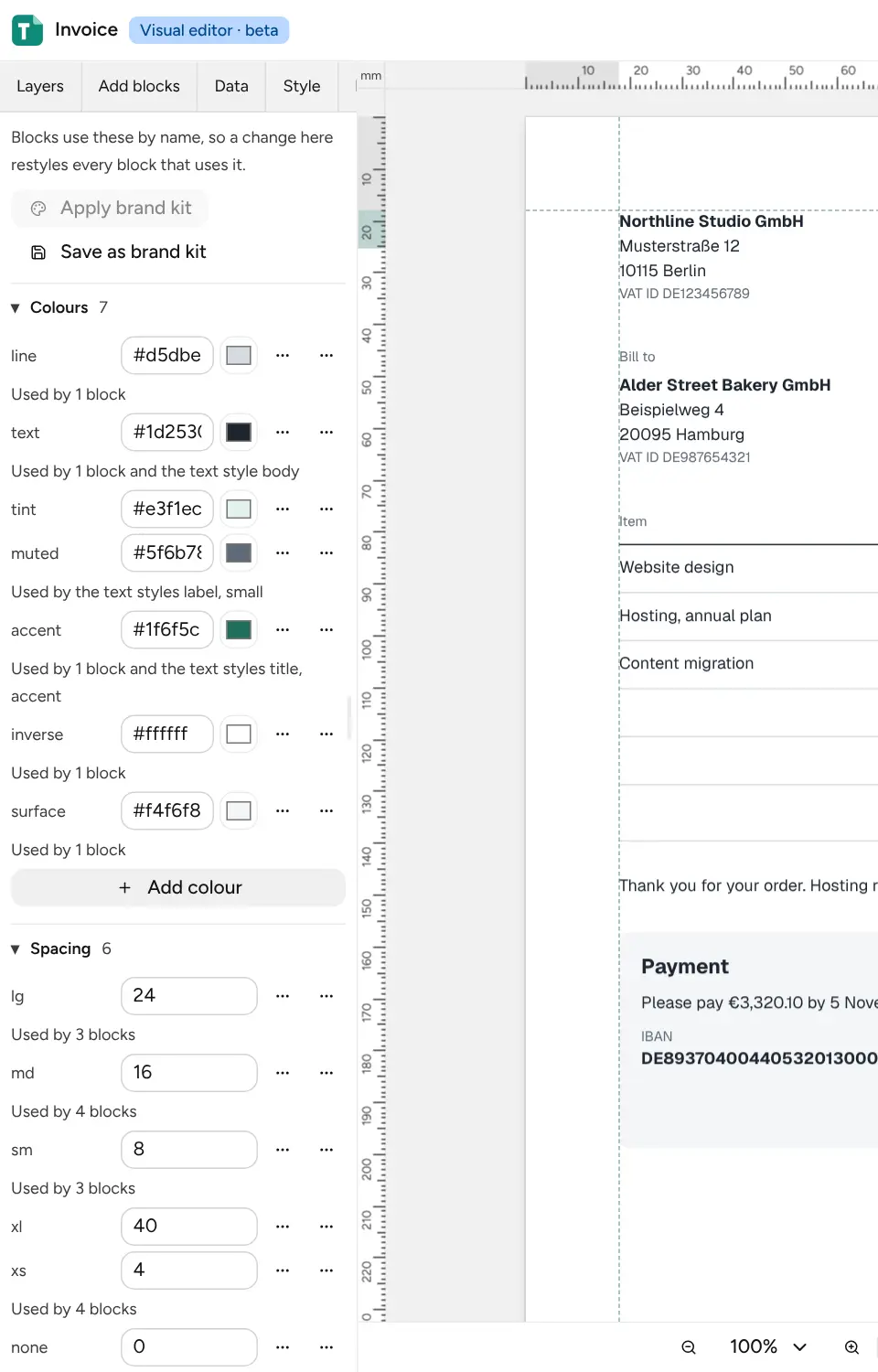
Section titled “Template style”The Style tab holds the template’s colours, spacing steps, fonts and text styles. Blocks use them by name, so changing an entry restyles every block that uses it. Each entry says which blocks use it.
- Add colour, Add spacing step, Add font and Add text style add entries. Each entry’s menu renames or deletes it; renaming updates the blocks that use it, and an entry in use cannot be deleted.
- A font can use font files you upload (TTF, OTF or WOFF2), with a fallback until they load.
Brand kit
Section titled “Brand kit”The brand kit is your workspace’s logo, colours, spacing, fonts and text styles. Every new visual template starts from it, with the logo in its header. It sits at the top of the Style tab, with its logo, colours and fonts in one line.
- Apply brand kit takes the kit’s entries over the template’s own.
- In the kit’s menu, Save this style as the brand kit makes this template’s style the kit’s. Templates that took the kit before keep their own style.
- Read from a website reads the colours, fonts and logo of your site’s page and its stylesheets. Look them over and click Save as brand kit; then Apply brand kit brings them into the template. Upload the font files the PDF should use in the template’s fonts.
- Upload logo, Replace logo and Remove logo change the kit’s logo.
Applications can read and replace the kit with GET and PUT /v1/brand-kit; see
brand kit for the request.